
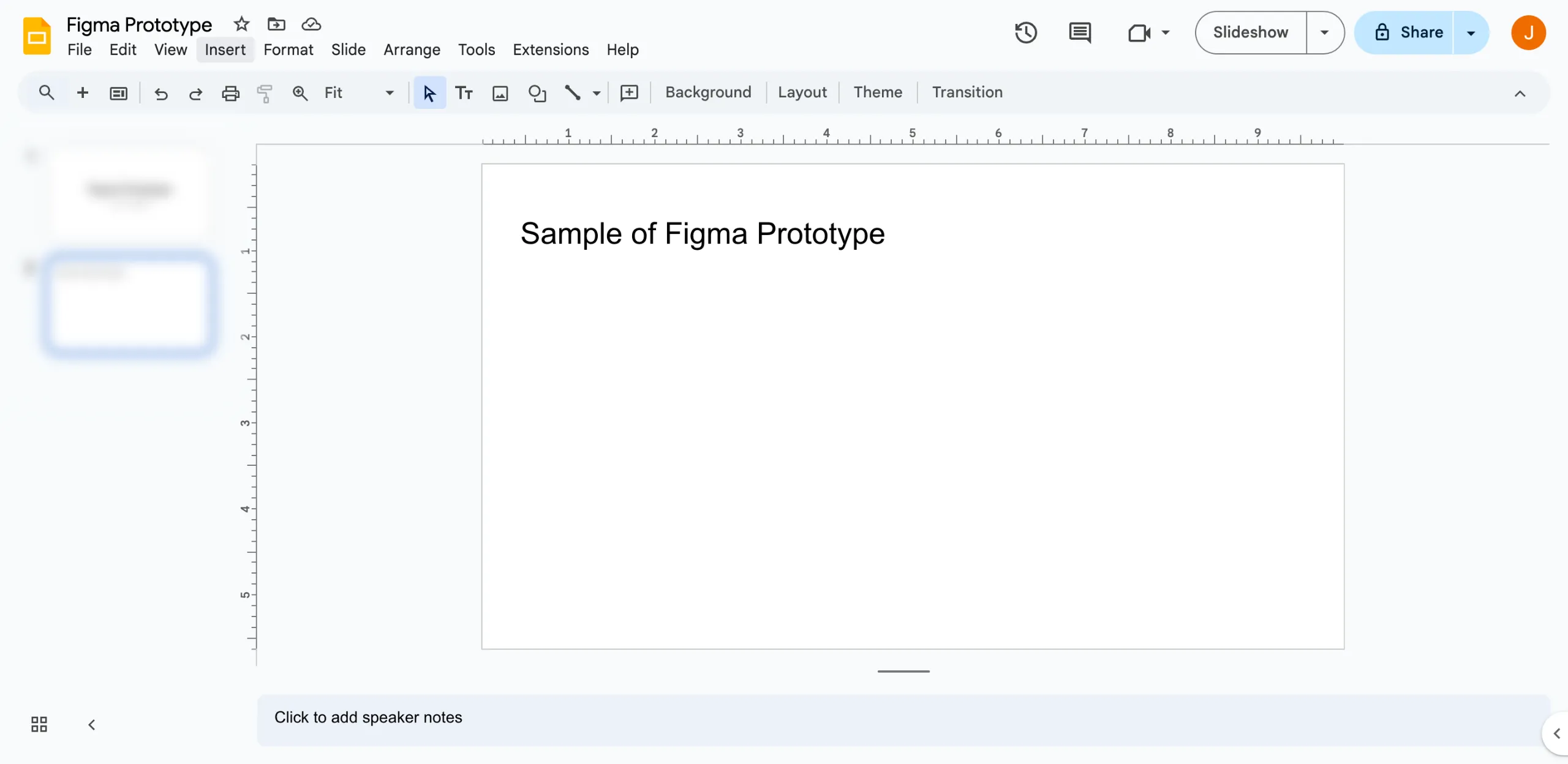
The quickest way to show a Figma Prototype in Google Sheets is to create a hyperlink for its screenshot. I will explain how to do it in a few steps here
1.Launch the top menu bar, next go to ‘Insert’ and click on it.
2.After that, place your mouse over the ‘Image’ icon and click on ‘Upload From Computer’.
3.Browse your saved files and add the screenshot of the Figma prototype you are working with.
4.After that, choose the ‘Insert Link’ icon.
5.After that, enter the Figma prototype link you got from the Preview page into the space provided and hit ‘Apply.’After finishing, click on the ‘Slideshow’ button located in the top-right corner.
6.Accessing the Figma Prototype’s viewing page is possible during your presentation by taking a screenshot.
FAQ'S
How to Embed a Figma Prototype in Google Slides
We make websites that bring joy and meet your goals.
We create digital experiences that not only capture the users but also empower businesses in a highly competitive world. We are dedicated towards developing creative solutions that will easily fuse creativity with functionality, with long-lasting effects.

